
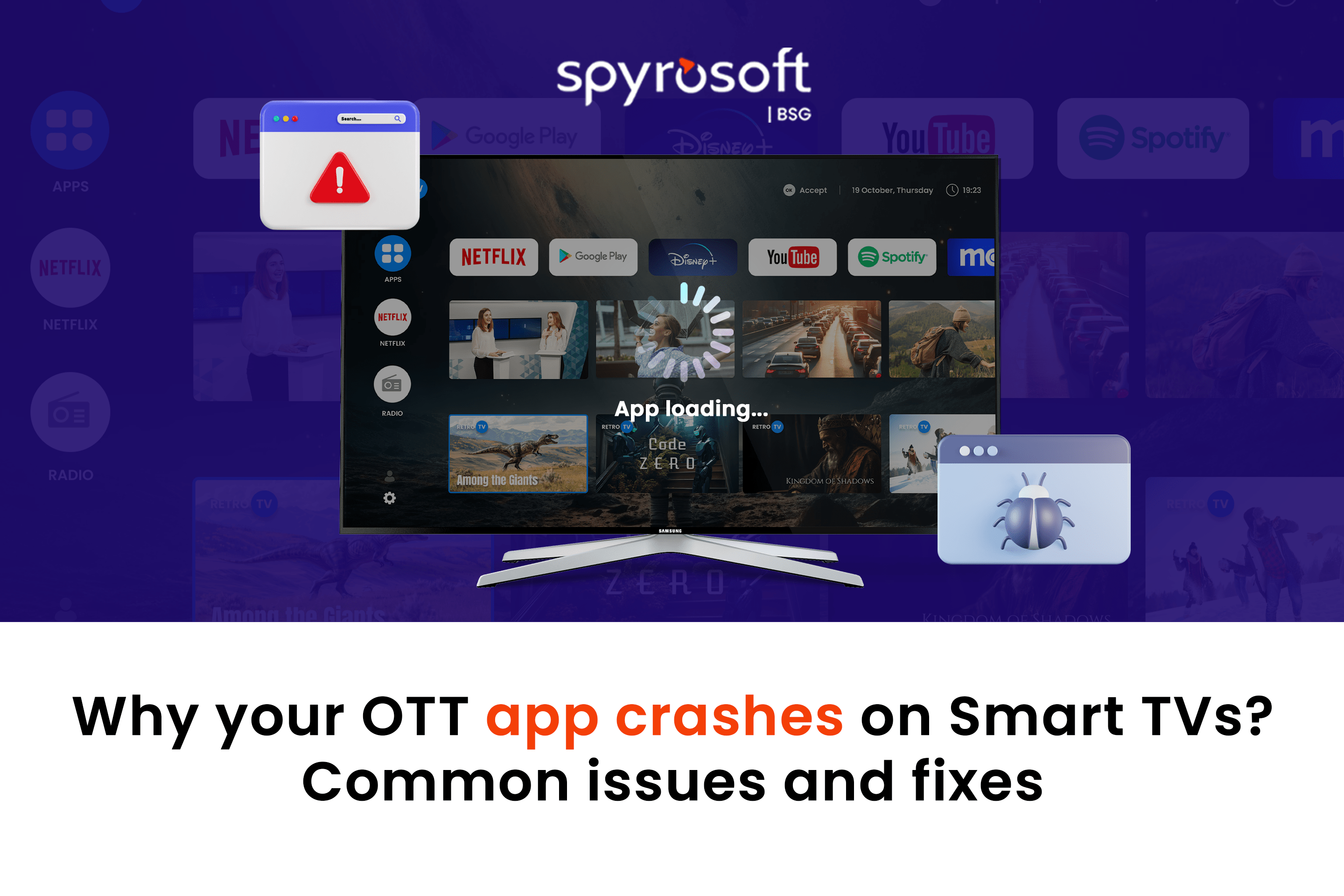
Smart TVs have become the go-to screen for streaming – but running OTT apps on platforms like Tizen, webOS, or Android TV isn’t always smooth sailing. What looks straightforward on paper can quickly turn into a frustrating experience, with unexpected crashes, sluggish performance, and unhappy users. If your app keeps acting up on Smart TVs, it’s not just bad luck. OTT apps crash for specific, common reasons – and there are proven ways to fix them.
In this article, we’ll dig into the typical causes of crashes on Smart TVs and how to resolve them effectively.
Why Smart TVs are challenging for OTT apps
Smart TVs are not like smartphones or web browsers. There is a huge fragmentation of operating systems (Tizen, webOS, Android TV, etc.), hardware capabilities, and software versions. Some TVs never get updated after leaving the factory. Others run custom versions of the operating system.
Additionally, Smart TVs often come with:
- Limited RAM and CPU power
- Outdated or limited browsers (for web-based apps)
- Differences in media decoders and drivers
Unlike mobile or desktop platforms with relatively standard environments, Smart TVs vary drastically by region, brand, and year of manufacture. Some lower-end models may even remove key system components to save costs, which affects app behaviour in unpredictable ways.
All of this creates a complex environment where an app that works well on one model may crash on another.
Most common reasons OTT apps crash on Smart TVs
Crashes on Smart TVs are often caused by a combination of hardware limitations, inconsistent environments, and unhandled edge cases. Below are the key culprits in detail:
Memory issues
Smart TVs have limited memory compared to smartphones or desktops. If an app loads large assets, uses oversized images, or maintains long session states without proper cleanup, it can quickly run out of memory, leading to crashes. Having too many apps open in the background can also strain system resources.
Outdated software or apps
Running outdated firmware or app versions can lead to incompatibility issues, missing APIs, or unresolved bugs – resulting in poor performance or crashes. Regular updates are crucial for both the app and the underlying system.
Internet connection problems
Streaming apps depend on stable and fast internet. A weak or unstable connection can interrupt content delivery, trigger timeouts, or overload the app’s retry mechanisms, eventually leading to freezes or crashes.
Unsupported media formats
Smart TVs vary widely in their support for video and audio codecs. Playing content in an unsupported format can result in playback failures or full app crashes. Media behaviour may also differ between platforms due to different playback engines or firmware-level handling.
UI rendering and navigation errors
TV UIs rely on remote controls, not touch. Crashes can occur due to incorrect focus handling, poor scaling, or elements that don’t respond properly to navigation inputs. Unexpected remote button sequences (e.g., double-presses or long holds) can expose unhandled states and cause instability.
Improper lifecycle management
Smart TVs often pause, resume, or terminate apps unpredictably. If the app doesn’t handle lifecycle transitions like resuming video playback, restoring user sessions, or maintaining navigation state, it may crash or behave erratically.
App-level bugs and glitches
Like any software, OTT apps can have bugs – ranging from memory leaks to logic errors. If these aren’t patched quickly, they can affect stability and degrade the viewing experience.
How to diagnose OTT apps crash
Diagnosing crashes on Smart TVs requires more than just replicating the issue – it involves understanding device behaviour, platform limitations, and usage patterns across a fragmented ecosystem. Here’s how to approach it effectively:
Test on real devices
Smart TVs are present in over 70% of U.S. households, and with that diversity comes the challenge: different brands, chipsets, firmware versions, and performance capabilities.
Emulators or simulators can only go so far. They often:
- Lack hardware-specific quirks
- Don’t replicate limited memory or performance bottlenecks
- Miss brand-specific UI engines or rendering behaviours
To catch real-world issues:
- Test across multiple brands (Samsung, LG, Sony, TCL, etc.)
- Cover different OS versions and custom builds
- Include older and lower-end models, not just flagship devices
This helps ensure that your app behaves predictably across the full spectrum of devices your users may own.
Log everything
Robust logging is critical for diagnosing Smart TV crashes, especially since debugging on the TV itself is often limited or unavailable.
Best practices include:
- Use platform-specific logging tools
- Track key metrics: memory usage, CPU load, network status, navigation events
- Include error stacks, API response failures, and user navigation paths
Use crash monitoring tools
Integrate crash analytics solutions (e.g., Sentry, Crashlytics, Bugsnag) to get real-time crash reports with stack traces. These tools help you track how often a crash happens, where it happens, and what the user was doing at the time.
Automated testing on device labs
Set up or partner with a lab that runs your app on a wide range of Smart TVs automatically. These services can simulate user interaction, monitor performance, and catch brand-specific bugs early in the development process.
At Spyrosoft BSG, we offer our own Test Lab equipped with a broad set of real devices allowing us to run both manual and automated tests to ensure your app performs smoothly across platforms.
Fixes and best practices for OTT apps crash
Building a robust OTT app for Smart TVs requires careful optimisation, adherence to platform guidelines, and ongoing maintenance.
Optimise memory usage
Start by keeping memory use in check. TVs have far less RAM than phones or laptops, so clean up unused resources, avoid memory leaks, and use lazy loading where you can. If your app holds onto too much at once, it can crash without warning.
Stick to supported codecs
Make sure your media is compatible. Test your videos on actual devices, use adaptive streaming like HLS or DASH, and stick to widely supported codecs. What works perfectly on one TV might fail completely on another due to different hardware decoders.
Design for remote navigation
Design with the remote in mind. Make every button press count, ensure all elements are easy to reach, and show clear focus states. TVs rely on D-pad navigation, and even small UI bugs can stop users from going anywhere.
Modular architecture
Keep your app modular. Breaking features into smaller pieces makes it easier to test, update, and fix problems quickly. If something breaks, you can fix just that part instead of digging through the whole codebase.
Performance profiling
Performance matters. Watch out for slow load times, high memory use, or frame rate drops. A laggy interface or stuttering video is one of the fastest ways to lose users.
Graceful degradation
Don’t expect every feature to work on every TV. Let your app adapt – disable extras on older or weaker models but keep the core experience intact. It’s better to offer a solid basic version than a feature-rich one that crashes.
Regularly check your network connection
And finally, help users with basic network tips. Many crashes come down to poor connections, so a simple suggestion to move the router or check the Wi-Fi can make a big difference. Even great apps can fail when the network isn’t reliable.
Certification tips
Each Smart TV platform has its own certification process. Passing it helps avoid app rejection and ensures better performance:
Tizen: Samsung Certification with focus on memory usage, playback, and UI responsiveness.
webOS: LG App Review includes deep UI checks, audio/video behaviour validation, and edge-case testing.
Android TV: Google Play certification or OEM-specific programs. Stability, crash-free metrics, and Play Store guidelines are key.
Roku: Partner Success Certification with focus on SceneGraph performance, memory usage, and remote control responsiveness.
Certification also helps build credibility with users and gives your app better visibility within the platform’s ecosystem.
Summary
Crashes on Smart TVs are frustrating, not just for users, but for the teams behind the apps. The good news is, they’re almost always solvable. The key is knowing how to work within the constraints of each platform. That means testing on real devices, accounting for hardware limitations, and optimising both performance and compatibility from the ground up.
Smart TVs come in all shapes and sizes, with varying operating systems, system resources, and firmware quirks. That’s why a one-size-fits-all approach just doesn’t work. A solid QA strategy, platform-specific fine-tuning, and ongoing performance monitoring are essential if you want to deliver a smooth, high-quality OTT experience that works for everyone.
Need help?
We’ve supported dozens of OTT platforms in fixing Smart TV stability issues, improving performance, and getting certified on even the most demanding platforms. If you’re dealing with frequent crashes, playback problems, or tricky certification requirements, we can help.
Our team can audit your app to find the root causes of instability, set up a tailored testing pipeline using real devices in our in-house Smart TV Test Lab, and guide you through the process of certification across all major platforms: Tizen (Samsung), webOS (LG), Android TV, Roku, and more.
Let’s make your Smart TV app something users can rely on – smooth, fast, and frustration-free.
If you find this article valuable, you can share it on social media →
Read more about the VOD & OTT Industry!
Media technology integration: turning stacks into systems
Learn how POIS and ESAM move ad control to the source, giving broadcasters real-time flexibility and regional targeting.
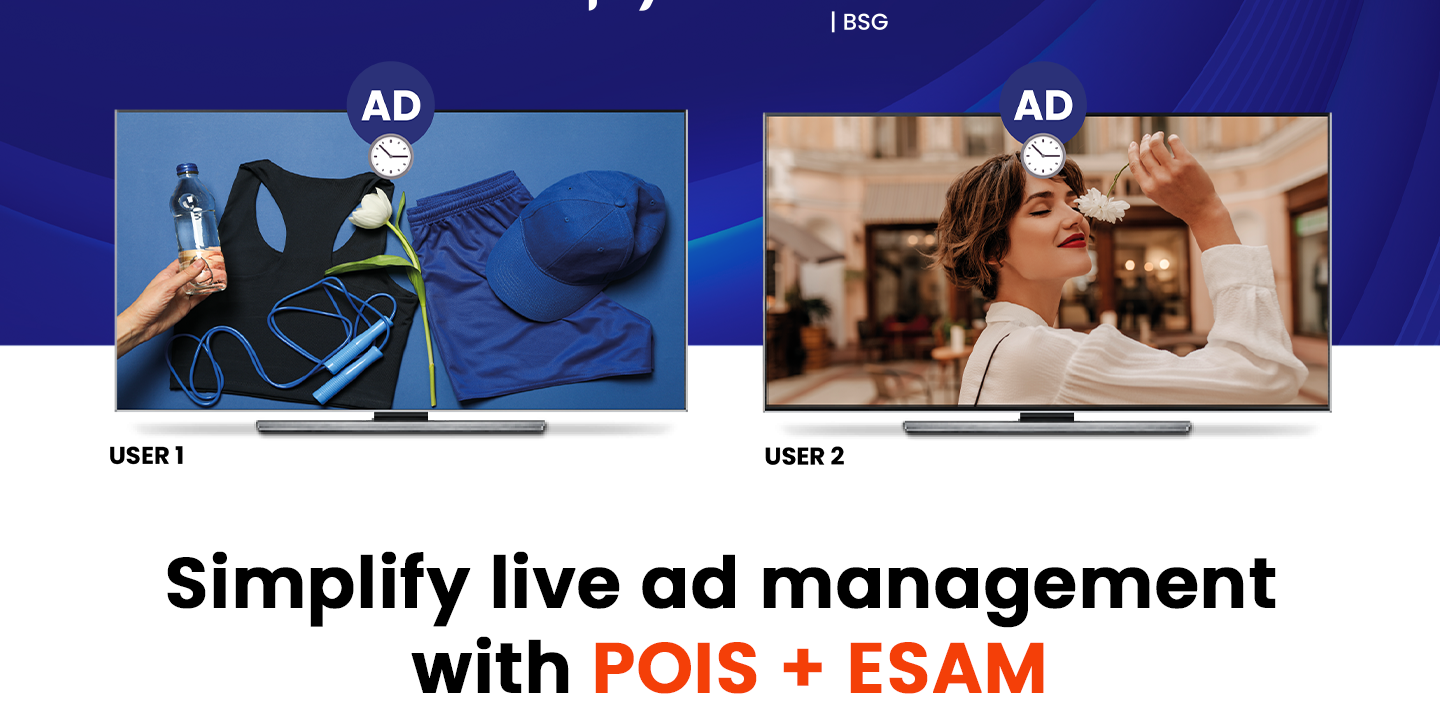
How POIS and ESAM power live ad control
Learn how POIS and ESAM move ad control to the source, giving broadcasters real-time flexibility and regional targeting.
What is Amazon Vega OS and why it matters for Fire TV users
Amazon unveils Vega OS, a new Linux-based system replacing Android on Fire TV. Faster, lighter, and built for independence from Google’s ecosystem.
Are you looking for a partner to build a Video Solution?
Leave your email and a short description about your project. We would gladly discuss different cooperation possibilities!